Get Quick Notification Previews: How to Long Press App Icons to See Notifications on Samsung Galaxy S24

how to long press app icons to see notifications on samsung galaxy s24

The Samsung Galaxy S24 comes packed with powerful features designed to make your smartphone experience faster, smarter, and more efficient. One of the most underrated yet incredibly useful tools is the ability to long press app icons to quickly view notifications. Instead of opening each app one by one to check for updates, this handy … Read more

Maximize Your Screen Real Estate: How to Switch Between Standard and Compact S Pen Menu on Samsung Galaxy S24 Ultra

how to switch between standard and compact s pen menu on samsung galaxy s24 ultra

If you’re holding the Samsung Galaxy S24 Ultra in your hands, you’ve already got one of the most powerful mobile tools out there. But what really sets this phone apart is the S Pen—it’s more than just a stylus. It’s your personal assistant, creative tool, and productivity booster all in one. Now, here’s something many … Read more

Say Goodbye to Shaky Footage: How to Enable/Disable Camera Super Steady Mode on Samsung Galaxy S24

how to enable/disable camera super steady mode on samsung galaxy s24

If you’ve ever tried shooting a video while walking, running, or just moving around, you know how shaky the footage can get. That’s where the Super Steady mode on the Samsung Galaxy S24 comes in. It’s like having a built-in gimbal right in your pocket—designed to smooth out your videos for a more professional look … Read more

How to Enable or Disable Grammarly on Samsung Galaxy S24 (Step-by-Step Guide)

how to enable/disable grammarly on samsung galaxy s24

Ever typed a message on your Samsung Galaxy S24, hit send, then instantly noticed a typo? Yeah… been there. That’s exactly why Grammarly exists. But sometimes, Grammarly feels like that friend who corrects you too much. So the real question isn’t just how to turn it on — it’s how to enable and disable Grammarly … Read more

Customize Your Multitasking: How To Enable/Disable Swipe For Split Screen on Samsung Galaxy S24

how to enable/disable swipe for split screen on samsung galaxy s24

The Samsung Galaxy S24 comes packed with powerful features designed to boost productivity and make multitasking a breeze. One of the most useful tools available is split screen mode, which allows you to run two apps side by side. Whether you’re replying to messages while watching a video or taking notes during a video call, … Read more

Boost Your Multitasking: How to Enable/Disable Swipe For Pop Up View on Samsung Galaxy S24

how to enable/disable swipe for pop up view on samsung galaxy s24

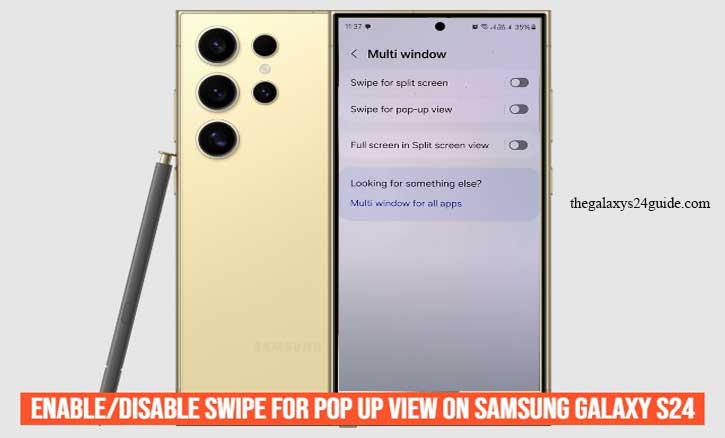
The Samsung Galaxy S24 is packed with advanced features designed to make multitasking easier and more intuitive. One of the most handy tools it offers is the swipe for pop-up view feature, which lets you open apps in a small, resizable window that floats above other apps. Whether you’re replying to messages while watching a … Read more

Samsung Galaxy S24: Toggle Fingerprint Lock Off Without Removing Registered Data (Easy Steps)

how to temporarily disable fingerprint without deleting on samsung galaxy s24

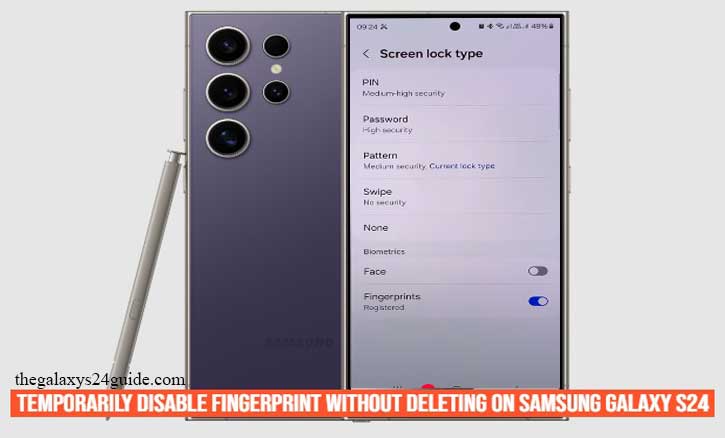
Imagine you’re lending your Samsung Galaxy S24 to a friend or family member. You want them to use your phone without giving away your fingerprint access. That’s when temporarily disabling fingerprint unlock—without deleting your registered prints—becomes essential. Biometric authentication, especially fingerprints, is one of the fastest and most secure ways to unlock a phone. According … Read more

Keep Your Gallery Clean: How to Automatically Delete Screenshots After Sharing on Samsung Galaxy S24

how to automatically delete screenshots after sharing on samsung galaxy s24

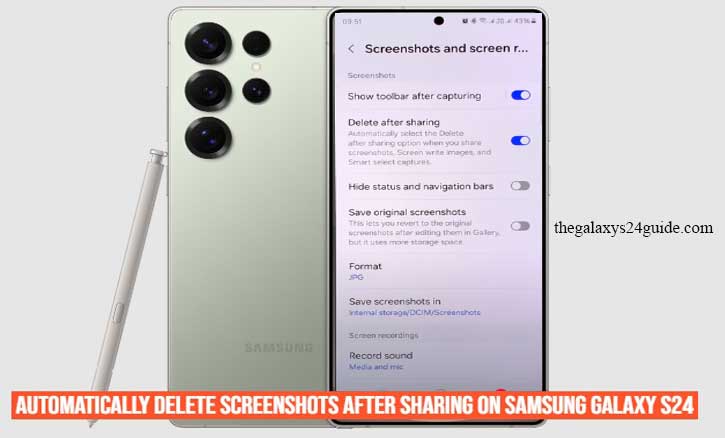
Taking screenshots is one of the most convenient ways to capture important information, share moments, or save content quickly on your Samsung Galaxy S24. However, after sharing these screenshots, many users find their device storage cluttered with unwanted images that serve no further purpose. Manually deleting these screenshots one by one can be tedious and … Read more