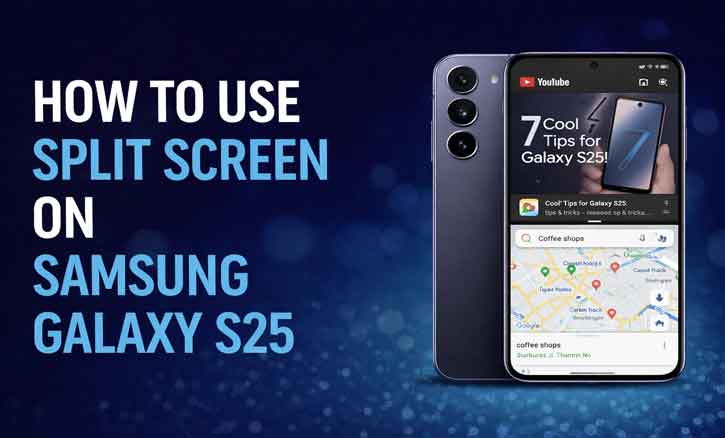
Ever caught yourself switching back and forth between apps like a maniac? Chatting on WhatsApp, copying info from Chrome, then jumping back again? Yeah—same here. Good news: Samsung Galaxy S25 split screen is built exactly for moments like this.
In this guide, I’ll show you how to use split screen on Samsung Galaxy S25, step by step, plus real-world tips most people never use. No boring explanations. Just practical stuff that actually helps.
What Is Split Screen on Samsung Galaxy S25?
Split Screen—also called Multi Window in Samsung’s One UI—lets you run two apps side by side on one screen. No app switching. No losing focus.
On the Galaxy S25, this feature runs smoother thanks to:
- Faster Snapdragon/Exynos processing
- Optimized One UI multitasking
- Better RAM management
Why You’ll Love Using Split Screen
Split screen isn’t just “cool”—it’s useful in real life.
Here’s where it shines:
- Watching YouTube while texting
- Google Docs + browser research
- Maps + WhatsApp when traveling
- Shopping apps + comparison reviews
Human–computer interaction studies from universities like Georgia Tech show that dual-app layouts reduce task-switching time and help users complete workflows faster, especially on large screens. That’s exactly what Samsung is optimizing for.
Bottom line: you get more done with less effort.
How to Use Split Screen on Samsung Galaxy S25 (Step-by-Step)
Method 1: Use Split Screen from Recent Apps (Fastest Way)
This is the easiest and most popular method.
- Open your first app (example: Chrome)
- Tap the Recent Apps button
- Tap the app icon at the top of its preview
- Select Open in split screen view
- Choose the second app from the list
- Boom. Two apps, one screen.
Pro tip: Drag the center divider to resize both apps.
Method 2: Use Split Screen from App Icons
Perfect if you already know which apps you want.
- Long-press an app icon on the Home Screen or App Drawer
- Tap Open in split screen view
- Select your second app
Fast, clean, no extra taps.
Method 3: Enable Gesture-Based Split Screen
If you love gestures, this one’s for you.
- Go to Settings > Advanced features > Labs
- Enable Multi Window gestures
- Open Recent Apps
- Swipe or tap the split option
Samsung’s gesture system is designed to reduce friction—and it shows.
Pro Multitasking Tips Most Users Don’t Know
Swap App Positions
Tap the center divider > hit the swap icon > instantly flip app sides.
Resize Split Screen Windows
Drag the divider left or right to focus on one app more.
Save App Pairs
Use the Edge Panel to save your favorite combos (like Maps + Spotify).
Use Pop-Up View with Split Screen
Yes, you can run three apps at once:
- Two in split screen
- One floating pop-up
Samsung’s UX research shows power users prefer this hybrid setup for messaging and media control.
Split Screen Not Working? Try This First
If split screen doesn’t show up, don’t panic.
Common fixes:
- Make sure Multi Window is enabled
- Settings > Advanced features > Multi Window
- Update One UI to the latest version
- Restart the phone
Important note:
Some apps don’t support split screen, especially:
- Certain games
- Banking apps
- Streaming apps with DRM protection
That’s normal—it’s a security and performance thing.
Read: How to Switch Between Navigation Gestures and Buttons on Samsung Galaxy S25
Best Apps to Use in Split Screen Mode
Not all apps are equal. These combos work insanely well:
- Chrome + Notes > research & write
- YouTube + WhatsApp > watch & chat
- Google Maps + Messenger > navigate & communicate
- Shopee + Chrome > compare prices instantly
Samsung designs One UI to prioritize productivity, and these apps fully support dynamic resizing.
Conclusion: Make Split Screen Your Secret Weapon
Once you start using split screen on your Samsung Galaxy S25, there’s no going back. It’s faster, smarter, and honestly makes your phone feel more powerful.
This guide didn’t just show how to use it—it showed how to use it better than most people. Now open two apps, resize that screen, and multitask like you actually mean it.
FAQ
1. Can I resize split screen apps?
Yes. Just drag the center divider to adjust the layout.
2. Does split screen drain battery faster?
A little—but Samsung’s adaptive power system minimizes the impact.
3. Can I use split screen in portrait mode?
Yes. Apps will stack vertically instead of side by side.
4. Is split screen safe for private apps?
Yes. Android’s sandbox system keeps apps isolated, even in split view.
5. Can I disable split screen if I don’t like it?
Absolutely. Go to Settings > Advanced features > Multi Window and turn it off.
Read: How to Enable Dual Apps on Samsung Galaxy S25: Step-by-Step Guide for Beginners