Ever grabbed your brand-new Samsung Galaxy S24, powered it on, and suddenly everything is in a language you don’t even recognize? Yeah… we’ve all been there. Maybe you imported the phone, bought it second-hand, or you’re just switching languages because life is multilingual these days.
And the good news? Changing the system language on the Galaxy S24 is super easy—you just need to know where Samsung hides the settings inside One UI 6.x (Android 14).
Before we jump in, here’s a cool fact:
According to a usability study by the University of Michigan School of Information, users perform tasks faster and more accurately when the device language matches their native language. Makes total sense, right? So let’s get your phone speaking your language.
How System Language Works on Your Galaxy S24
The Galaxy S24 uses Samsung’s One UI on top of Android, and it has multiple layers of language settings:
- System Language: The main language used for menus, system apps, and notifications.
- Keyboard Language: The typing language set on Samsung Keyboard or Gboard.
- App Language: Some apps (like Instagram, WhatsApp, and Google apps) support per-app language settings.
Knowing this makes troubleshooting way easier later.
How to Change System Language on Samsung Galaxy S24
1. Open Settings
- Swipe down > tap the Settings icon.
- This is basically the “mission control” of your phone.
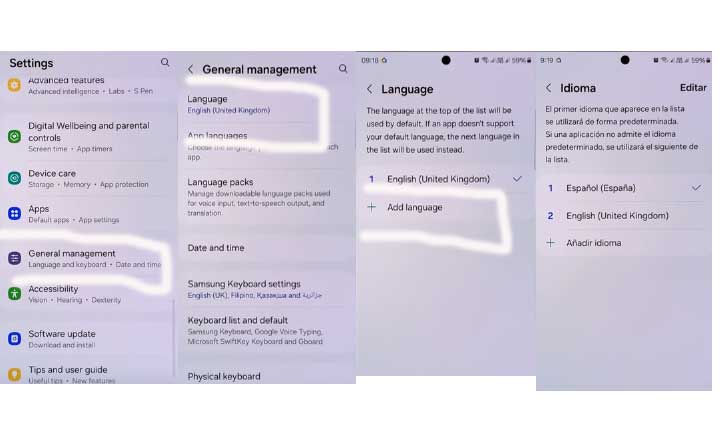
2. Go to General Management
- Scroll down a bit, tap General Management (it usually sits below “Battery and Device Care”).
3. Tap “Language and Input” > “Language”
- Here’s where Samsung lists all the language options.
- If your phone is stuck in a language you don’t recognize, look for a globe icon—it’s universal.
4. Add a New Language
- Tap Add language > pick the language you want.
- Popular examples: English (US), English (UK), Spanish, Japanese, etc.
Samsung will ask:
- “Set as default?”
Tap Yes if you want your whole system to switch immediately.
5. Move the New Language to the Top (If Needed)
- Samsung uses a priority list.
- Drag your new language to the top (if the system doesn’t switch automatically).
6. Restart (Optional but Helpful)
- Your S24 usually updates instantly, but some apps fully refresh only after a quick restart.
- Just being honest—restarts solve like 80% of tech weirdness.
Value-Add Tips You’ll Actually Use
1. Change Your Keyboard Language Too
Your system may be in English, but your keyboard might still type in something else.
Here’s how to fix it (Samsung Keyboard):
- Settings > General Management
- Samsung Keyboard settings
- Languages and types
- Download or enable the language you want
For Gboard, long-press the spacebar > Select language.
2. Use Per-App Language (Super Useful for Bilingual Users)
One UI lets you set a different language per app.
Go to:
- Settings > General Management > App languages
Example:
- Instagram: English
- TikTok: Spanish
- WhatsApp: English
Perfect if you’re juggling work + personal languages.
3. Fix Apps That Don’t Change Language
Some apps don’t follow system language because:
- They don’t support that language
- Cache needs clearing
- They’re using their own internal language settings
Try:
- Opening the app > checking Language settings inside the app
- Force stop
- Clear cache
4. Change Voice Assistant Language (Bixby & Google Assistant)
Bixby
- Settings > Bixby Voice > Language & Voice Style
Google Assistant
- Google app > Profile icon > Assistant Settings > Languages
Common Problems & How to Fix Them
1. The language I want doesn’t show up.
- It might be region-restricted.
- Go to Add language > scroll down > tap More languages.
- If still missing, it’s likely not supported yet.
2. Keyboard won’t switch languages.
Enable multiple input languages manually in keyboard settings.
3. Apps still using the old language.
Try:
- Force stop
- Clear cache
- Check app’s internal language menu
4. System language keeps switching back.
Make sure your preferred language is at the top of the priority list.
Read: Switching Keyboard Languages on the Samsung Galaxy S24: Step-by-Step Instructions
Expert Insight
According to research from Stanford University HCI Group, interface comprehension increases by up to 40% when users interact with software in their primary language.
Translation: your brain simply works smoother when the phone talks like you do.
Conclusion
That’s it! Your Samsung Galaxy S24 should now speak the language you’re most comfortable with. Super simple—not scary at all—and now you can scroll, text, and explore without decoding mystery menus.
FAQ
1. Will changing the system language delete my data?
Nope. Only the interface text changes.
2. Why isn’t the new language applied to all apps?
Some apps don’t support it, or they require per-app language settings.
3. Can I use two system languages at the same time?
Not simultaneously for the interface, but you can switch anytime and use different languages per app.
4. Why is the keyboard still typing in the old language?
You need to enable keyboard languages separately.
5. Does changing language affect spell check and voice typing?
Yes—these features adapt to your selected keyboard language.