Last month, Emma left her phone in a taxi on her way home. Panic set in—not because of the phone’s price, but because it contained private photos, work files, and banking apps.
Luckily, she had one thing on her side: Samsung Secure Folder. When someone tried to access her apps, all they saw was an empty home screen. Her data? Completely untouched.
In today’s world, our phones are more than communication tools—they’re digital vaults of our lives.
A study from Stanford University (2023) revealed that 88% of data breaches are caused by human error, such as weak passwords or unsecured files. That’s why features like Samsung’s Secure Folder matter more than ever.
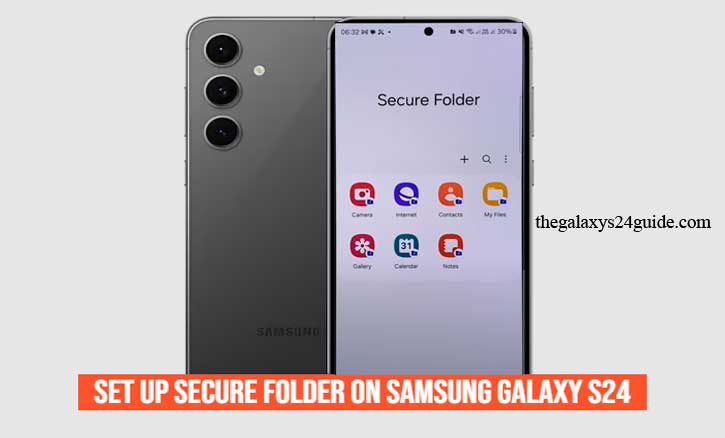
If you own a Samsung Galaxy S24, you already have one of the best privacy tools built into your device. Let’s walk through how to set it up properly—so your digital life stays safe, no matter what.
What Is Samsung Secure Folder (and Why It’s Essential)
Samsung Secure Folder is part of the Samsung Knox security framework, a defense-grade system designed to isolate and encrypt sensitive data.
It creates a private, encrypted space within your phone where you can safely store photos, apps, and documents—completely separate from the rest of your phone’s storage.
Think of it as a personal digital safe.
You can even hide it from your home screen so only you know it exists.
A 2022 study by the University of Oxford’s Department of Computer Science found that device-level encryption can reduce unauthorized data access by up to 70%. That’s exactly what Secure Folder provides—peace of mind built into your pocket.
Before You Start: What You Need to Prepare
Before setting up your Secure Folder on the Galaxy S24, make sure you have:
- The latest version of One UI installed
- A registered Samsung Account (required for setup and backup)
- Enough storage space for files and apps you want to protect
- Optional: enable fingerprint or facial recognition for stronger security
Step-by-Step: How to Set Up Secure Folder on Samsung Galaxy S24
Setting up Secure Folder only takes a few minutes, and it’s worth every second. Here’s how:
Step 1: Open Settings
Go to Settings > Security and Privacy > More security settings > Secure Folder.
Step 2: Sign In to Your Samsung Account
You’ll be prompted to sign in. This links your Secure Folder to your Samsung identity for cloud backup and password recovery.
Step 3: Set Your Lock Type
Choose your preferred lock method—PIN, password, or biometric (fingerprint or face).
Biometric locks are the most secure and convenient.
Step 4: Customize Your Folder
You can rename the folder and even change its icon. Want it invisible? You can hide Secure Folder from your App Drawer entirely.
Step 5: Add Files and Apps
Tap Add Files or Add Apps. You can move sensitive photos, documents, or apps like WhatsApp or Notes into this protected space.
Step 6: Backup and Sync (Optional)
To keep your data safe even if you lose your phone, enable Samsung Cloud backup.
This allows you to restore your Secure Folder when you get a new device.
Tips to Maximize Your Secure Folder Protection
To make the most of this feature, follow these expert tips:
- Enable Auto Lock When Screen Turns Off – forces re-authentication every time.
- Avoid sharing your Samsung Account credentials.
- Regularly update your phone to receive the latest Knox security patches.
- Use Two-Factor Authentication (2FA) for your Samsung Account.
- Store work files separately from personal ones to prevent accidental sharing.
According to a MIT Cybersecurity Lab (2024) report, over 60% of mobile data thefts occur due to unprotected folders and weak passwords. Secure Folder effectively eliminates both vulnerabilities.
Common Mistakes to Avoid
Even a strong tool can be misused. Avoid these common Secure Folder pitfalls:
- Forgetting to back up your Secure Folder data before resetting the phone
- Using the same password as your main device lock
- Leaving the folder visible on the home screen
- Installing unknown third-party apps within Secure Folder
Remember: privacy isn’t just about technology—it’s about consistent habits.
Real-Life Story: When Secure Folder Saved the Day
James, a marketing manager, once dropped his Galaxy S24 during a conference.
When a stranger picked it up, he immediately tried to unlock it—but every attempt failed.
Why? Because James had placed all his sensitive presentations and client data inside his Secure Folder.
Later, using Samsung’s Find My Mobile, James wiped his device remotely. The phone was gone—but his data remained safe.
That’s the real power of Secure Folder: protection that works even when your phone doesn’t.
Conclusion
In a digital world where our lives live on glass screens, privacy isn’t a luxury—it’s a responsibility.
With Samsung’s Secure Folder, your Galaxy S24 becomes more than a phone—it becomes a personal fortress for your data.
Setting it up takes less than five minutes, but the protection lasts for years.
FAQ
1. Is Secure Folder free on the Samsung Galaxy S24?
Yes, it’s built-in and completely free to use.
2. Can I transfer my Secure Folder to a new phone?
Absolutely. Use Samsung Cloud to back up and restore your Secure Folder.
3. What if I forget my Secure Folder password?
You can reset it easily using your Samsung Account credentials.
4. Can I hide Secure Folder from the app drawer?
Yes. Go to Settings > Secure Folder Settings > Hide Folder, and it disappears from view.