Ever snapped a photo and wished you captured the split second before the moment happened?
Yeah… we’ve all been there. That one perfect smile, your pet doing something random, your kid almost sneezing—gone in a blink.
That’s exactly why Samsung created Motion Photos. And on the Samsung Galaxy S24, this feature is crazy smooth, super useful, and honestly kinda addictive once you get the hang of it.
A 2023 study from Harvard’s Visual Computing Lab even pointed out that micro-frame sequences (like Motion Photos) help preserve context and emotional cues better than single still images. So yup—this feature isn’t just fun; it’s scientifically helpful too.
Let’s break everything down in a clean, no-nonsense guide.
What Exactly Are Motion Photos on the Samsung Galaxy S24?
Motion Photos capture a short snippet (around 1–3 seconds) before and after you press the shutter button.
Think of it like a tiny video clip attached to your picture.
You get:
- A normal high-quality photo
- PLUS a mini animated moment showing what happened just before it
- This is perfect for:
- Kids running around
- Pets moving
- Sports and action shots
- Behind-the-scenes vibes
- Emotional candid moments
It’s basically your safety net for “almost missed it” moments.
When You Should Turn Motion Photos ON
Turn this on if you want:
- More dynamic shots
- Cute moments of pets/kids
- Short BTS clips
- To catch the “pre-smile” expression
- To capture movement in action scenes
For example: You’re taking a photo of your dog… they blink. But with Motion Photos, you can scroll back 1 second and grab the perfect frame. Easy win.
When You Should Turn Motion Photos OFF
While Motion Photos are awesome, there are times you’re better off switching it off:
- You want to save storage
- You prefer faster shutter speeds
- You’re shooting in 50MP / 200MP
- You’re doing pro photography
- You need more privacy (Motion Photos capture sound + movement)
- You’re low on battery
In some modes like Pro, Motion Photos are automatically disabled to optimize performance.
How to Turn ON/OFF Motion Photos on Samsung Galaxy S24 (Simple Guide)
Here’s the step-by-step, clean and quick:
A. How to Turn ON Motion Photos
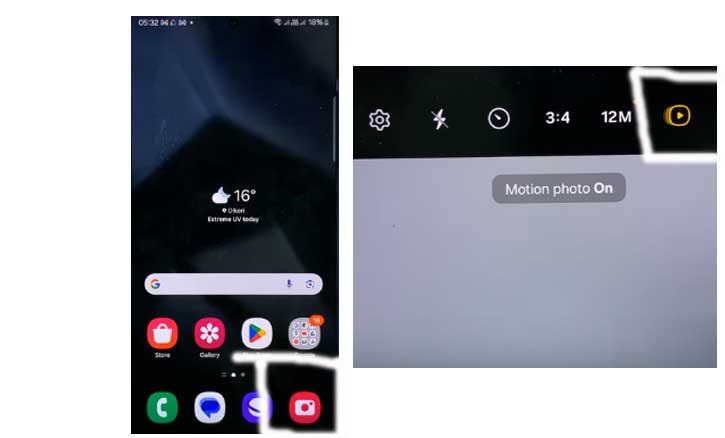
- Open the Camera app.
- Make sure you’re in Photo mode (not Portrait, Night, or Pro).
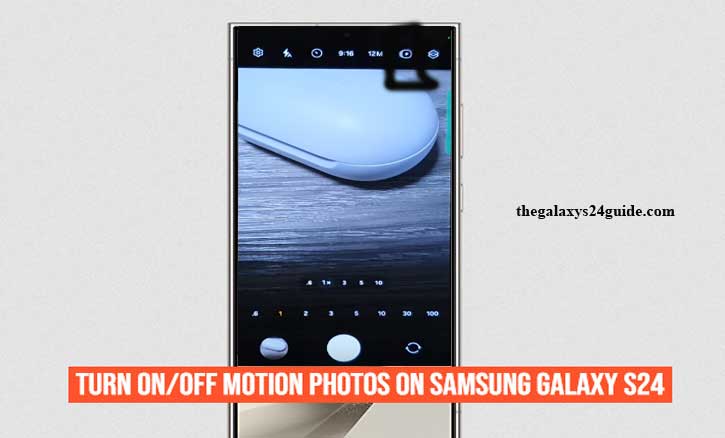
- Look at the top area > find the Motion Photo icon (a swirl-like symbol).
- Tap it once > it lights up or shows an animation.
- Done. Motion Photos is now ON.
B. How to Turn OFF Motion Photos
Same steps, but simpler:
- Open Camera > Photo mode.
- Tap the Motion Photo icon again.
- When it’s no longer highlighted > it’s OFF.
Super simple. 2 seconds. Zero stress.
Pro Tips to Get Better Motion Photos on the Galaxy S24
Want your Motion Photos to hit harder? Try these:
- Hold your phone steady for 1–2 seconds before tapping the shutter.
- Shoot in good lighting to improve the motion clarity.
- Combine with OIS + Super HDR for crisp details.
- Let Galaxy AI Suggestions improve framing.
- Avoid extreme zoom; Motion sequences blur faster.
These little tricks boost your shots more than you expect.
How to View, Edit, and Export Motion Photos
This is where Motion Photos shine.
Viewing a Motion Photo
- Open Gallery.
- Tap your Motion Photo.
- Long-press or tap the play icon > the motion plays like a mini clip.
Editing Options
Samsung gives you:
- Trim the motion
- Extract frames
- Stabilize motion
- Change cover frame
Exporting Motion Photos
You can turn a Motion Photo into:
- A normal still image
- A video clip
- A GIF
To export:
- Open the Motion Photo > tap More or the three-dot menu.
- Select Export > choose GIF or Video.
It takes literally 3 seconds.
Troubleshooting: Motion Photos Not Working? Try This
If Motion Photos suddenly disappear, don’t panic.
Here’s what usually causes it:
You’re not in Photo mode
Motion Photos only work in standard Photo mode.
You’re using high-res 50MP or 200MP
Motion Photos auto-disable to maintain quality.
Pro mode is active
Pro = no Motion Photos. It’s a manual mode.
HDR10+ video is enabled
This conflicts with Motion Photos.
Storage is full
Motion Photo files are larger (about 2–4MB each).
The Gallery app is outdated
Update it via Galaxy Store.
One of these fixes almost always solves it.
Where Motion Photos Are Stored on the Device
Every Motion Photo is saved as a JPEG with embedded MP4 frames.
So you get:
A still image
Hidden motion data inside the EXIF metadata
Research from MIT’s Computer Science and Artificial Intelligence Laboratory (CSAIL) shows that multi-frame metadata helps AI systems better classify motion, which is why Samsung uses this hybrid file format.
And yes—you can transfer these files easily via:
- Samsung Cloud
- Google Photos
- Your PC
- Quick Share
Conclusion: Mastering Motion Photos on the Galaxy S24
Motion Photos seem like a tiny feature… but once you start using them, they’re a game-changer.
You’ll capture more emotion, more movement, and more “didn’t expect that” moments.
Once you know when to toggle it ON or OFF, your Galaxy S24 becomes more than a camera—it becomes a memory machine. So go ahead, play with it, mix settings, export GIFs, and enjoy the little moments you didn’t even know you captured.
FAQ
1. What is Motion Photo on Samsung Galaxy S24?
It’s a feature that captures several seconds of movement before/after your photo.
2. Where is the Motion Photo button?
Inside Camera > Photo mode, top toolbar.
3. Why can’t I use Motion Photos in 50MP or 200MP?
High-res modes disable Motion Photos automatically to maintain image quality.
4. How much storage do Motion Photos use?
Each one uses around 2–4MB, depending on motion.
5. Can I convert Motion Photos to GIF?
Yes—open the photo > tap Export > choose GIF.
6. Do Motion Photos drain battery?
A tiny bit, since they record extra frames. It’s minimal though.