Ever had your phone ring at the worst possible moment? You’re in a meeting. Or driving. Or just not in the mood to talk to a “Potential Spam Risk” caller for the fifth time today.
That’s where Text Call on the Samsung Galaxy S24 comes in.
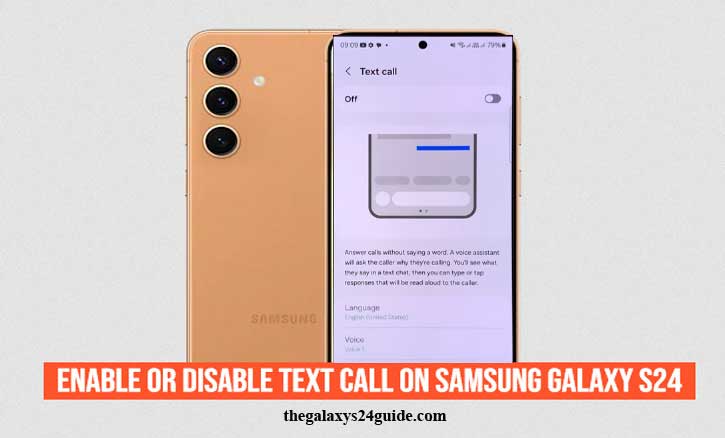
If you’re wondering how to enable or disable Text Call on Samsung Galaxy S24, you’re in the right place. This guide walks you through everything — quick steps, customization tips, troubleshooting, privacy info, and whether you should even use it in the first place.
Let’s make your phone work for you — not the other way around.
What Is Text Call on Samsung Galaxy S24?
Text Call is Samsung’s built-in AI-powered call screening feature. Instead of answering a call with your voice, your phone answers it with text. The caller speaks, their words are converted into text in real time, and you can respond by typing.
Think of it like a polite robot assistant that says, “Hey, what do you need?” — so you don’t have to.
It’s available on:
- Samsung Galaxy S24+
- Samsung Galaxy S24 Ultra
Standard Galaxy S24 models running the latest One UI version.
How to Enable Text Call on Samsung Galaxy S24
If you want to turn it on, it takes less than a minute.
Quick Steps (For People in a Hurry)
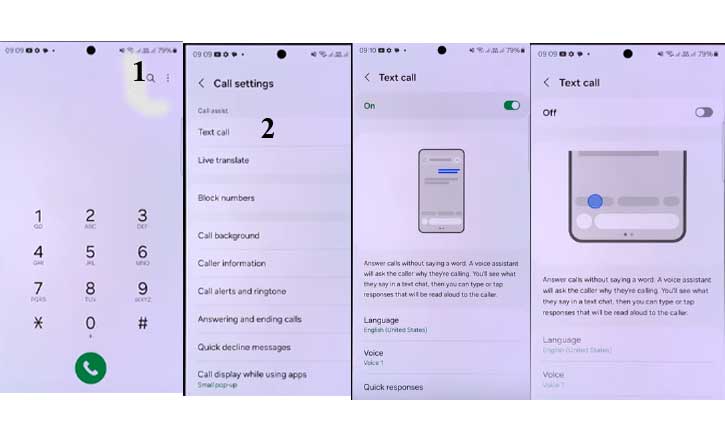
- Open the Phone app
- Tap the three-dot menu (top right corner)
- Tap Settings
- Select Text Call
- Toggle it ON
That’s it. You’re officially upgraded.
Note: In the U.S., availability may depend on your carrier and software version. Make sure your phone is updated.
Customizing Text Call Settings
Now let’s make it smarter.
Inside the Text Call settings, you can:
- Change the response voice (Yes, your AI assistant can have personality.)
- Set quick reply templates
- Adjust language settings
- Enable automatic answering for unknown numbers
Pro tip: If you get tons of spam calls, enable auto-answer for unknown numbers only. Your phone can handle the nonsense while you enjoy your coffee.
How to Disable Text Call on Samsung Galaxy S24
Maybe you tried it and decided you prefer good old-fashioned talking. No problem.
Turning It Off Completely
- Open the Phone app
- Tap the three-dot menu
- Go to Settings
- Tap Text Call
- Toggle it OFF
Done. Your phone will stop offering Text Call as an answer option.
Disable Text Call for Specific Situations
You don’t have to completely turn it off.
Instead, you can:
- Disable automatic answering
- Limit it to unknown callers only
- Turn off certain response templates
This gives you more control without losing the feature entirely.
Why You Might Want to Use Text Call (Pros)
Let’s be honest — humans are exhausting sometimes.
Here’s why Text Call is actually useful:
1. Blocks Spam Energy
You don’t waste your voice on robocalls.
2. Screens Unknown Numbers
You can see what they want before deciding to engage.
3. Perfect for Meetings
No awkward “Sorry, I’m in a meeting” whispers.
4. Accessibility Benefits
Great for users who are hard of hearing or prefer text-based communication.
5. Keeps You in Control
You choose when to speak — not random callers.
Why Some Users Prefer to Turn It Off (Cons)
It’s not perfect.
1. AI Misunderstandings
Speech-to-text isn’t flawless. Accents and background noise can confuse it.
2. Delayed Urgent Calls
If someone needs immediate help, Text Call might slow things down.
3. Privacy Concerns
Some users simply don’t like AI interacting on their behalf.
It really comes down to personal preference.
Text Call Not Working? Try These Fixes
If Text Call isn’t showing up or isn’t functioning properly, try this:
1. Update Your Software
Go to:
Settings → Software Update → Download and Install
Samsung frequently improves features through One UI updates from Samsung.
2. Check Carrier Support
Some U.S. carriers may restrict or delay support for certain AI features. If the toggle is missing, your carrier could be the reason.
3. Clear the Phone App Cache
- Go to Settings
- Tap Apps
- Select Phone
- Tap Storage
- Clear Cache
Don’t worry — this won’t delete your contacts.
4. Reset Call Settings
If things still act weird:
Settings → General Management → Reset → Reset Network Settings
(Heads up: this resets Wi-Fi and Bluetooth connections.)
Privacy & Security — Is Text Call Safe?
Good question.
Text Call primarily processes interactions through Samsung’s system. Depending on your software version, some processing may occur on-device, while certain features may use secure cloud-based AI services.
If privacy matters to you (and it should), here’s what you can do:
- Keep your software updated
- Review Samsung Privacy Policy in settings
- Disable auto-answer for unknown numbers
- Avoid sharing sensitive information through AI replies
For most U.S. users, Text Call is safe — but like any smart feature, use it wisely.
Final Thoughts — Should You Enable or Disable Text Call?
If you hate spam calls, love efficiency, and prefer screening unknown numbers quietly — enable it.
If you value traditional conversations and immediate voice interaction — disable it.
The good news? You’re in control.
Now you know exactly how to enable or disable Text Call on Samsung Galaxy S24. Try it out for a few days. Worst case? You toggle it off in 10 seconds.
Best case? Your phone becomes your new favorite assistant.
And honestly… that’s the kind of upgrade we all need.
FAQs
Can I use Text Call without internet?
Some features may require an internet connection for real-time speech-to-text processing. If you’re offline, functionality could be limited.
Does Text Call cost money in the U.S.?
No. Samsung does not charge extra for Text Call. However, standard carrier call charges still apply depending on your plan.
Is Text Call available on all U.S. carriers?
Availability can vary. Major carriers typically support it, but smaller carriers may lag behind in feature rollout.
Can callers tell they’re talking to AI?
Yes — they’ll hear an automated voice informing them that their speech is being converted to text. It’s transparent, not sneaky.
How do I change the Text Call voice?
Go to:
Phone → Settings → Text Call → Voice Settings
From there, you can select available voice styles.